Start by naming the role
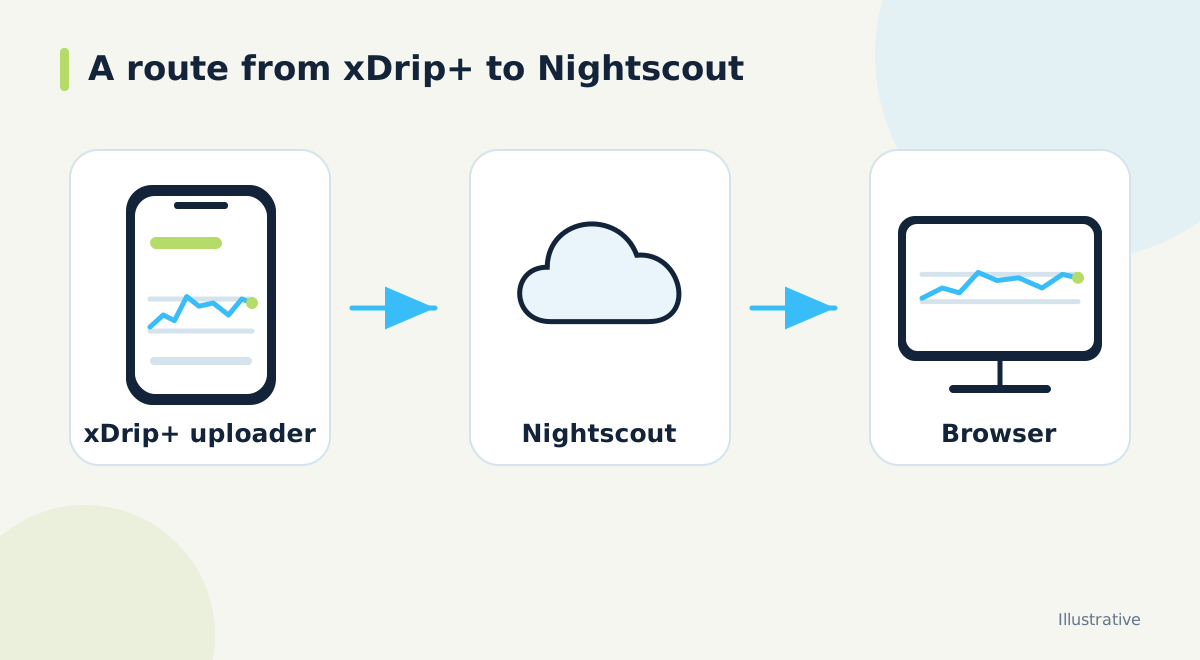
xDrip+ can be involved in a Nightscout arrangement in different ways. On one phone it may supply readings to the website; on another it may read the website as a follower. Those jobs use different settings. Before copying a connection guide, decide which job this particular phone needs to perform and whether AAPS is also part of the arrangement.
A useful description is one sentence: 'This phone receives the source readings and uploads them,' or 'This phone follows an existing Nightscout.' If neither sentence describes your setup, pause and draw the connection in your notes. That is faster than trying several unrelated settings until one appears to work.
If AAPS is involved, use its setup guidance
The standalone upload instructions below are not the starting point for an AAPS system. Current AAPS documentation says that, from AAPS 3.2 onward, other apps should not upload glucose and treatments to Nightscout. In that arrangement, xDrip+ can provide glucose locally to AAPS while AAPS handles the Nightscout upload. Follow the AAPS guide for your version.
This matters because duplicate treatment records can distort the data used by connected software. Do not turn on a second uploader to compensate for a problem elsewhere. First establish whether the missing information is absent from xDrip+, absent from AAPS or absent only from the website. The location of the gap determines which connection needs attention.
For a standalone uploader, check the documented URL format
For the standalone Nightscout upload route, xDrip's documentation describes Settings, Cloud Upload, then Nightscout Sync (REST-API). Its Base URL example follows the pattern https://API_SECRET@hostname/api/v1/. The hostname is the Nightscout website address without its leading https://. Use your actual private credential only in the appropriate app field, never in a public example or screenshot.
Check the guide against your installed version before saving. Copy the address carefully and look for accidental spaces, a repeated protocol or a missing path. If a credential contains special characters, use the official guidance for the app rather than experimenting with unverified URL transformations. Keep a note of the non-sensitive hostname so you can identify the destination later.
Verify the website before adding another display
Once the uploader is configured, compare a new reading in xDrip+ with the latest point on Nightscout. Check both time and units. If the browser shows old history, the website can still open even though the upload is failing. Inspect the uploader status before changing follower settings.
Following uses a separate data-source choice
A phone intended to read Nightscout uses the Nightscout Follower data-source option and the documented follow URL. For a private site, the access method depends on its authentication configuration. Prefer an appropriately restricted token over sharing the main API secret. Follow the current xDrip instructions for entering that token; a browser link and an app's connection format may differ.
Then compare the follower timestamp with the website. The follower has its own refresh behavior, so investigate it separately if Nightscout is current but the phone is behind. Avoid changing refresh settings without a specific problem to solve. First collect the observed times and check the app's status information.
Keep the connection simple enough to explain
Adding multiple destinations is not automatically a complete backup strategy. The xDrip uploader documentation describes queue behavior that differs when several Nightscout destinations are configured. Read those limits before assuming every destination will receive a complete history after an outage.
Start with one clearly understood route and verify it after changes. If you later connect Dia.best to Nightscout, check the existing uploader first, then the website, then Dia.best. Keeping the route understandable makes it easier to find a problem without disturbing a working source connection.
Official documentation and further reading
Software screens and compatibility can change. Check the documentation for your exact app and device versions. A remote display depends on the data source, internet access and server connection; check the time of the latest reading.