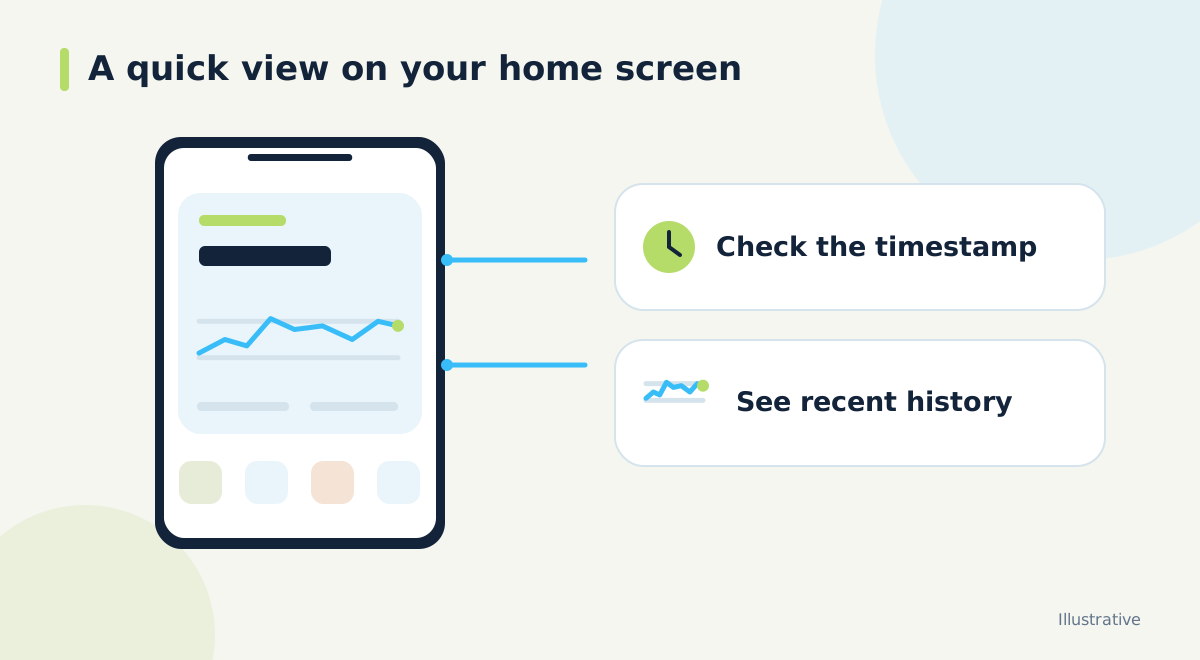
Decide what belongs on your home screen
An Android widget makes selected information visible beside your everyday apps. For someone using Nightscout, the practical benefit is fewer steps between picking up the phone and seeing the latest received glucose data. Choose a layout you can read comfortably, with enough space for the reading time as well as the large number.
A useful first goal is modest: find the current reading, identify its units and notice whether it is fresh. Add more details only after those basics are clear. A crowded screen is not automatically more informative, especially when you are checking it quickly while walking, travelling or preparing food.
Connect the data before placing the widget
Start by opening Nightscout itself and checking that its newest reading follows the source app. Next, connect that Nightscout in the app supplying your widget and confirm that data arrives there. Only then add the widget to the Android home screen. This sequence gives you a known working connection before you begin adjusting size or appearance.
With Dia.best, use the setup route for an existing Nightscout if you already have one. Keep the address and credentials in the intended connection fields, and use the permissions requested by the current instructions. Connecting your own Nightscout remains a separate choice from purchasing hosted Nightscout.
Add and size the widget
After installing and connecting the Dia.best Android app, touch and hold an empty area of the home screen, open Widgets and select Dia.best. Android launchers vary, so the precise menu labels and resizing controls may look different. Leave enough room that labels remain legible rather than squeezing the display between other icons.
Try the layout in the conditions where you actually use the phone. Check text size, screen brightness and whether you can distinguish the number from the trend symbol. If you share a screenshot while asking for layout help, crop or obscure account information and private connection details first.
Separate a reading from an estimate or a record
A widget can bring several kinds of information together, but they answer different questions. A received glucose reading describes a measurement at its timestamp. An estimate depends on a model and available history. An event marker records something entered or uploaded. Treating every displayed number as equally current or as an instruction makes the screen harder to interpret.
Learn the labels in the app's guide before using the smaller view. In Dia.best, recording insulin is a record of insulin already taken; it does not inject insulin or issue a pump delivery command. If your pump system already uploads an event, check the existing history before entering another copy manually.
Check normal updates and recognize a stale screen
During setup, watch several expected reading cycles and confirm that the measurement time advances. Compare the widget with the app rather than checking only whether the graph looks familiar. If the app is current but the widget is behind, the problem is later in the chain than the source-to-Nightscout upload.
After changing phones, Android settings or the launcher, repeat a short check. Review the app's background-operation guidance if updates stop when the screen is off. Make one change at a time, then observe whether it helped. Reinstalling everything at once can hide which part of the connection was responsible.
Keep a clear route to the full view
Use the widget for a quick overview and open the full app when you need context. A small graph cannot show every detail of a long history, and a missing field should prompt a closer look rather than an assumption about its value. Keep your usual source app easy to reach as well.
Before relying on a new arrangement day to day, write a simple acceptance checklist: the right account is connected, units are correct, timestamps advance, the layout is readable and you recognize the no-update state. That small check makes future problems easier to describe and helps everyone using the phone interpret the same screen consistently.
Official documentation and further reading
Software screens and compatibility can change. Check the documentation for your exact app and device versions. A remote display depends on the data source, internet access and server connection; check the time of the latest reading.