Separate a reporting connection from remote changes
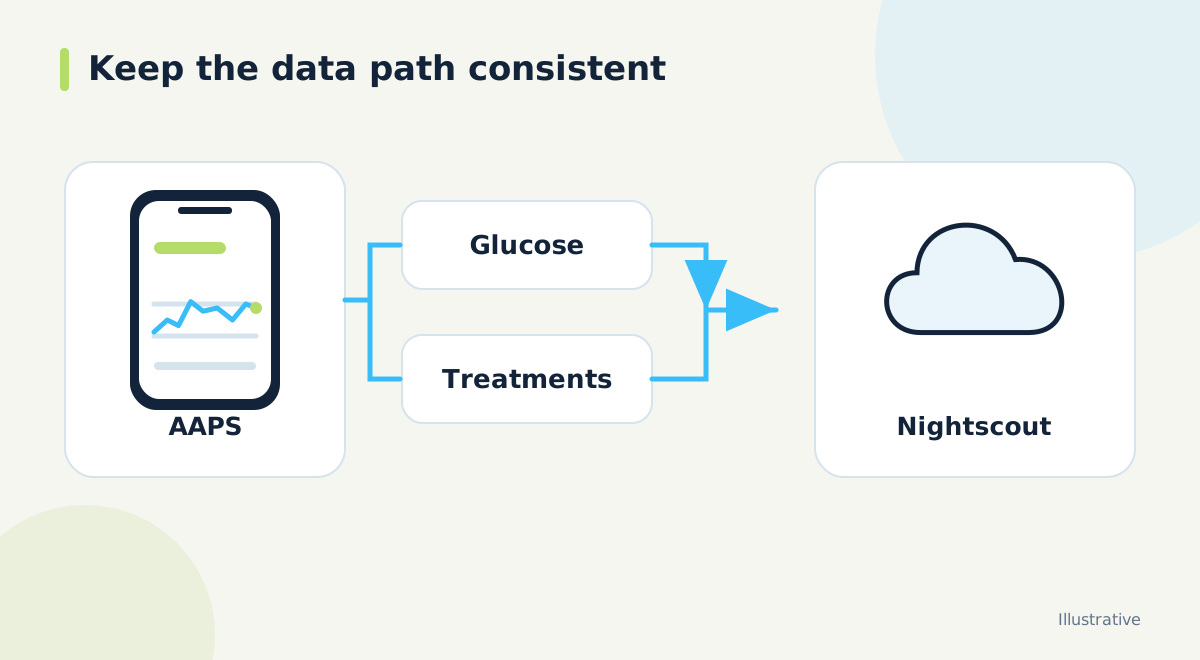
Nightscout can store and display data uploaded by AAPS. Depending on configuration, AAPS can also receive certain changes from Nightscout. These are different uses of the connection. Before following a setup guide, decide whether you are establishing a reporting route or using additional remote features. This article focuses on understanding the connection and checking the available data.
Do not treat a general Nightscout tutorial as instructions for changing an automated insulin system. Use the documentation for your AAPS version and keep your existing therapy settings. If someone helps with setup, explain the scope first: verifying uploads is a different task from enabling incoming changes.
Match the connection to your AAPS version
AAPS documentation distinguishes NSClient and NSClientV3 synchronization. The current guide specifies a compatible Nightscout version and explains the required authentication method. In particular, the V3 route uses an administrator-capable access token rather than simply treating the main API secret as the same thing. Check the exact version requirements before configuring the connection.
For managed hosting, ask the provider to confirm the Nightscout version and access-token support. Give the provider your AAPS version and the non-sensitive error text if connection fails. Never include a live token in a public issue, photograph or forum post. Record the successful method so a future phone replacement does not become a fresh guessing exercise.
Give one app ownership of the upload
Current AAPS guidance normally places Nightscout upload responsibility in AAPS. Its xDrip+ instructions warn against another app uploading glucose and treatments in an AAPS 3.2-or-later arrangement. That is why a standalone xDrip+ uploader tutorial should not be applied unchanged to an AAPS system. Follow the documented route for the entire setup.
When records appear twice or fail to match, list every route that might be sending them. Include apps that were configured during an older setup and later forgotten. Investigate the source of each record before attempting cleanup. Removing records without understanding the upload route can leave the original cause in place and makes the history harder to interpret.
Verify information in a fixed order
Begin with a current source reading in AAPS. Then check the corresponding reading and timestamp in Nightscout. If your setup is intended to upload treatment or device records, inspect recent legitimate examples too. Identify which types are actually present. An attractive graph alone does not prove that all expected records have reached the server.
Do not enter a fictional treatment as a connection test. Use existing real records and the testing methods described by the software documentation. Write a short result for each stage: AAPS has the information, Nightscout has it, and the follower has it. That gives troubleshooting a clear boundary.
Restrict access according to the task
A credential used by AAPS to upload has different permissions from one used by a person who only needs to view a graph. Nightscout provides a readable role for view-only access. Share that restricted access with a follower where appropriate, rather than passing on the AAPS upload credential. Review the access list when a caregiver or device stops being involved.
Also review which incoming Nightscout changes AAPS is configured to accept. Its documentation explains how reporting-only behavior differs from accepting profile or other supported changes. Keep that decision explicit. A person with access to a data display should not receive broader permissions simply because it is quicker to share an existing administrator link.
Add another display only after synchronization works
If you connect Dia.best to the existing Nightscout, first confirm that Nightscout contains the records you expect. Then verify what Dia.best receives and displays. Differences in layout or calculated fields do not automatically establish that an upload is missing. Check the underlying record and its time before comparing derived summaries.
Keep a concise note of the working setup: versions, upload owner, site address without credentials and the checks you completed. Revisit those same checks after an app update, changed token or hosting move. A repeatable verification sequence is easier to maintain than a collection of undocumented connection switches.
Official documentation and further reading
Software screens and compatibility can change. Check the documentation for your exact app and device versions. A remote display depends on the data source, internet access and server connection; check the time of the latest reading.