Start with the exact watch and operating system
A smartwatch can make a glucose check more convenient, but Nightscout support is not a universal feature of every watch. Write down the full model, operating-system version and phone you plan to pair with it. Then check the current requirements of the particular watch app or watch face you want to install.
Avoid buying hardware from an old screenshot alone. Watches from the same manufacturer can use different operating systems, and software requirements can change. If you already own a watch, begin with its installed software version and its store listing. The word smartwatch is not enough to establish compatibility.
Distinguish the face, the app and a complication
The watch face is the main clock screen. A complication is a smaller information element that a compatible face can display. A watch app may provide its own screen, supply data to a complication or communicate with a phone app. These are different roles, and installing one component does not necessarily install the others.
Before starting, make a short list of the components in your chosen route. Note what belongs on the phone, what belongs on the watch and where the Nightscout connection is configured. Use the documentation for that route throughout setup instead of combining instructions from unrelated products.
Map how readings reach the wrist
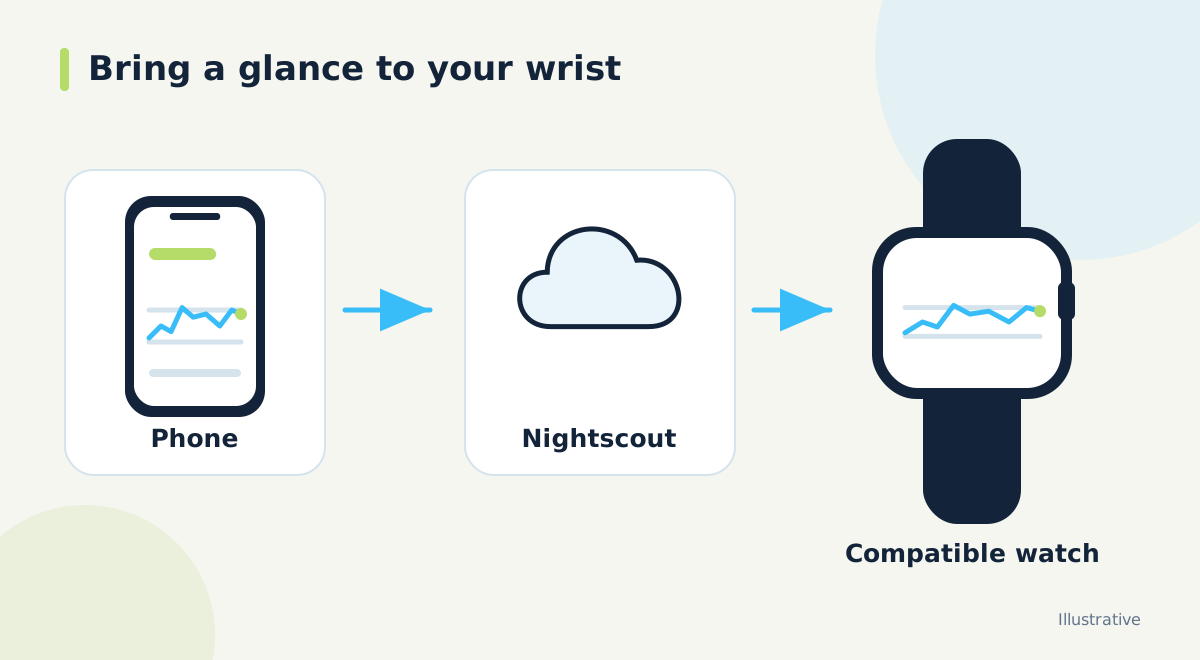
Some arrangements use a phone app between Nightscout and the watch; others have different connection requirements. The official Nightscout wearable guide describes several approaches. Find the one that matches your hardware and understand which devices must remain connected. Do not assume that a watch continues receiving data independently because it has its own mobile connection.
A diagram helps: source app, Nightscout, phone and watch. Put a check mark beside each working connection. When the watch is behind, compare it with the phone and Nightscout timestamps. That comparison tells you where to investigate without changing a working uploader unnecessarily.
Follow the current Dia.best requirements
Dia.best offers a watch face for compatible Samsung Galaxy Watch models and other supported Wear OS watches. Its current English guide says readings require Dia.best apps on both the phone and watch. Check the Google Play listing and the current setup instructions for your exact device and operating-system version before installation.
First verify the phone connection, then connect the watch component and select the face. Check the displayed units and reading time against the phone. If an installation is unavailable for your model, confirm compatibility rather than assuming that any Wear OS watch or any Samsung watch can use the same release.
Test the display you will actually use
Read the screen at a normal glance, not only while holding it close during setup. Can you identify the reading time? Is the direction indicator clear? Does the layout remain understandable in bright light? A visually impressive face is less useful if its important labels are too small for your eyes.
Observe what happens when you open the phone app and when the watch has been idle. Update timing may depend on the operating system and the selected app. A persistent number is not proof that a new reading has arrived. Keep the phone source accessible whenever the watch display is unclear or stale.
Treat the watch as one view in a larger setup
A glucose watch display is convenient during ordinary activities, but convenience does not establish a complete monitoring system. Know which device provides your usual alerts and which screen you use for the fuller history. Do not infer treatment controls from the presence of a graph or a dose-related label on a watch.
Recheck the arrangement after an operating-system upgrade, a new phone or a major app update. Record the working versions and connection route somewhere you can find later. That record turns a future support request into a clear description of your setup, instead of a search for whichever instructions happened to work last time.
Official documentation and further reading
Software screens and compatibility can change. Check the documentation for your exact app and device versions. A remote display depends on the data source, internet access and server connection; check the time of the latest reading.