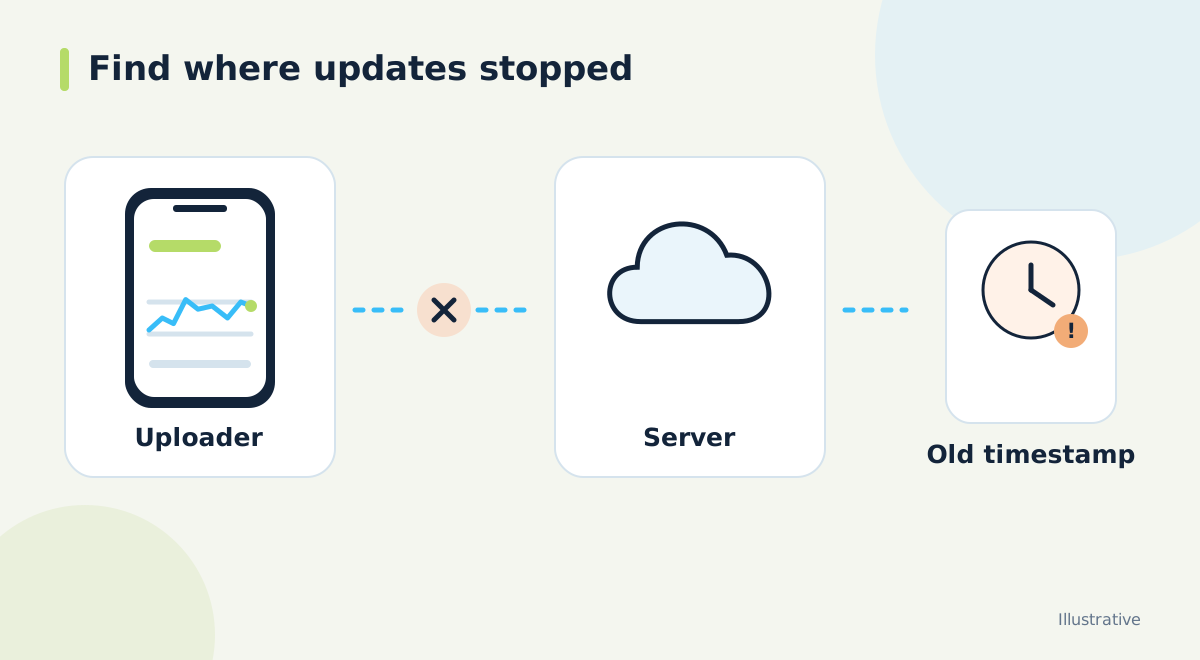
Write down what is actually stale
Nightscout not updating can describe several different problems: no new measurements in the source app, readings not reaching the server, a follower staying behind or a widget retaining an older display. Start by recording the last measurement time visible in each place. An exact time is more useful than saying the graph looks wrong.
Check the primary glucose source using your established care routine while investigating remote displays. Do not treat an old number as a current measurement. Keep troubleshooting separate from treatment decisions, and use the appropriate source and care plan when information is missing or does not match how the person feels.
Compare source, server and follower in order
Open the source app first. If it has no new reading, Nightscout cannot create one. If the source is current, open the Nightscout site and compare timestamps. If Nightscout is also current, move on to the follower app, widget or watch. The first stale step is where your investigation should concentrate.
Record whether the problem affects glucose only or also other information. A graph may update while treatment records are absent, because not every uploader sends the same event types. Missing dose markers and a stopped glucose feed should not automatically lead to the same repair.
If the source is current but Nightscout is behind
Check whether the uploading phone can access the internet through its normal connection. Then inspect the uploader's status or error message and confirm that uploading is enabled. Look for recent changes such as a new site address, changed credentials, a replacement phone or a paused service.
Follow the uploader's current instructions for the exact URL format it expects. A browser address and an app's upload endpoint may not have the same format. Check for accidental spaces or an old hostname. Keep credentials out of screenshots and support messages; report the error text without copying the complete private connection string.
If Nightscout is current but the follower is behind
Verify the follower's internet connection and the site address it uses. A phone may still point to a previous Nightscout after a migration. If a token has changed, update the follower using the instructions for that app. A successful browser session on one device does not prove that another app has valid access.
Allow for the follower's own refresh behavior. For example, xDrip documents a sample-period setting and a wake-delay setting for Nightscout following. Those settings address different parts of its polling behavior. Consult the current guide before changing them, and do not assume that a faster polling setting can repair missing upstream data.
If the Nightscout site itself will not open
Try the site from another browser or connection to narrow the problem. Note the exact message: an authentication failure, a certificate warning and a server error are different clues. Check your hosting provider's status information and any recent service email. For managed hosting, send support the affected address, approximate start time and a redacted error message.
If you maintain the server yourself, use the official Nightscout troubleshooting guide and your platform's logs. Avoid deleting a database or rebuilding the installation as an initial experiment. Preserve the information needed to understand the failure, and establish a recovery plan before making a change that could remove history.
Verify recovery instead of stopping at a reload
After a change, confirm that measurement times advance through several expected updates in the source, Nightscout and the final display. Reloading one old graph is not a complete recovery check. Note any remaining gaps rather than assuming that every missed record has been restored automatically.
Keep a short incident note with the first stale time, the component affected, the change made and the result. If the problem returns, that note helps you identify a pattern and gives support a useful starting point. Make one measured change at a time; a clear diagnosis is usually more valuable than a long list of resets.
Official documentation and further reading
Software screens and compatibility can change. Check the documentation for your exact app and device versions. A remote display depends on the data source, internet access and server connection; check the time of the latest reading.