1. Write down your starting point
Before changing anything, note your sensor, phone operating system, source app and intended follower. Add the version of any app responsible for sending data. You are looking for a supported route from that source to Nightscout. A generic tutorial may describe a different combination, so compare its assumptions with your actual devices before following it.
Next, choose one first outcome: current glucose on the website, for example. Leave additional displays until that works. This creates a clear checkpoint. If you change hosting, uploader settings and a follower at the same time, a failure becomes harder to locate because you no longer know which part last worked.
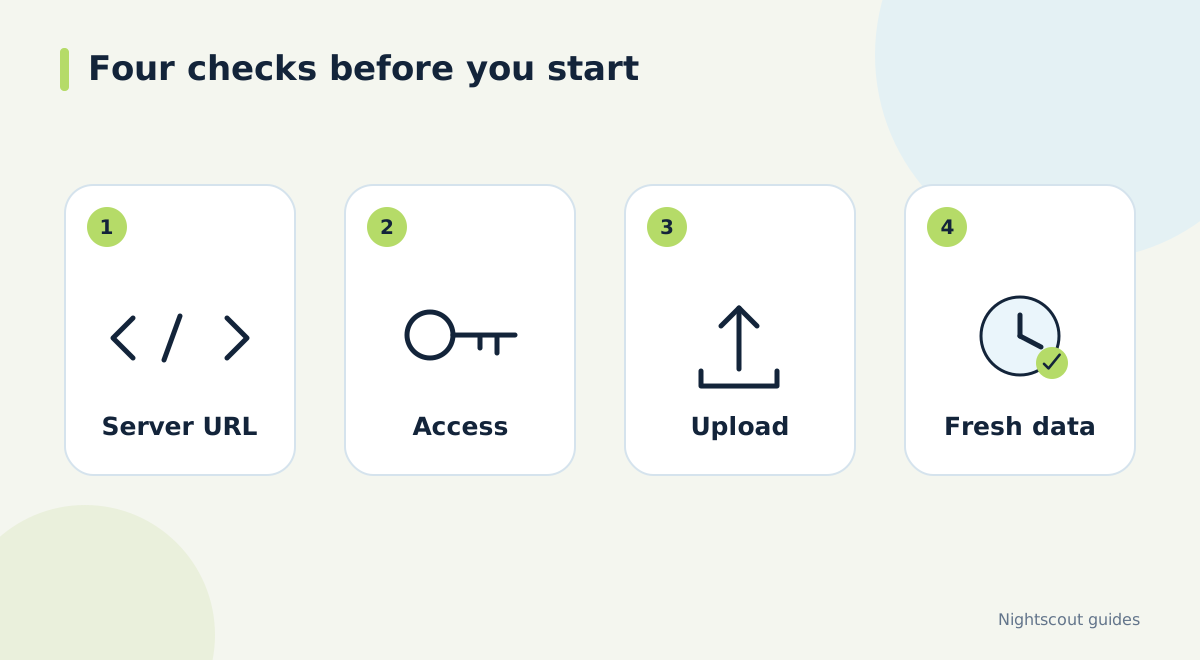
2. Confirm the address and access method
Open the Nightscout address in a browser and check that you have the correct site. Use its secure HTTPS address. Your hosting account password, Nightscout API secret and a role-based access token serve different purposes; use the credential required by the app's own instructions. Do not paste an administrator credential into a public document or share it as an ordinary website link.
Store the account information somewhere you can retrieve it later. Record the plain site address separately from any link containing a token. When asking someone to help with setup, send the non-sensitive details first. If a screenshot is needed, remove credentials and private records before sharing it.
3. Identify the app responsible for uploading
Follow the uploader guide for your source rather than enabling every available cloud switch. A standalone xDrip+ arrangement and an AAPS arrangement have different requirements. Current AAPS guidance puts the upload responsibility in AAPS and warns against competing xDrip+ uploads. Decide which route applies before editing settings.
At this stage, make a short note of the selected route. For example, identify the app that receives source readings and the app that sends them onward. If they are different, record both. This simple description helps you avoid assuming that an app which shows glucose must also be the app uploading it.
4. Match units and verify a new timestamp
Check whether your displays use mmol/L or mg/dL and confirm they are set as intended. Then compare a newly received source reading with the website. Look at the timestamp rather than judging the size or shape of the graph. A site that still displays yesterday's history is reachable, but it has not passed the fresh-data check.
If fresh points are missing, pause here and inspect the uploader's connection status. Note the last successful upload time and any error text. Keep the working source app visible while you investigate. There is little value in setting up several followers before the main website is receiving current information.
5. Check the records you expect to use
If your arrangement sends treatment or device information, inspect a recent legitimate record and check its time and type. Do not create a treatment event merely as a test in a connected automated insulin system. Use the available real history or follow the app's documented testing method. Distinguish missing records from a true absence of events.
Write down which information is present: glucose, relevant records and any available device status. This becomes a small acceptance checklist for future troubleshooting. It also helps a second person understand why their display might show fewer details than yours without concluding that the entire connection has failed.
6. Add and check the follower
Set up the final display using its documented access method. Give a view-only follower read-only access when supported. Compare its latest timestamp with Nightscout and confirm that the person using it understands where to find the reading age. If you connect Dia.best, verify the data there after confirming the website itself is current.
Finish by recording the successful route and agreeing what to do when updates stop. Keep that note short enough to use during a busy day: first inspect the source, then Nightscout, then the follower. Recheck the same route after changing phones, credentials or hosting.
Official documentation and further reading
Software screens and compatibility can change. Check the documentation for your exact app and device versions. A remote display depends on the data source, internet access and server connection; check the time of the latest reading.